~/posts/zabbix-grafana-dashboards-that-actually-help
Zabbix + Grafana: Dashboards That Actually Help
Over the years I have built a lot of dashboards, in Zabbix itself and in Grafana with the Zabbix plugin. For this post I went through them with one question in mind: if something breaks right now, does this dashboard help me find it faster?
The honest answer: not always. Most panels were added because the data was available, not because someone needed it. This post shows the patterns I found and how to fix them.
The screenshots in this post are recreations with synthetic data and anonymised names. They show the same patterns as my real dashboards, without the hostnames and internal addresses.
Start with the questions
During an incident you ask three questions, in this order:
- Is something wrong?
- Where is it wrong?
- Why is it wrong?
Every dashboard should clearly answer one of them. The overview answers the first question and is open all day. A site or service dashboard answers the second. For the third, you usually end up in Zabbix itself, on the host’s latest data and graphs, so link there instead of rebuilding it.
With that in mind, here are the five things I changed.
1. One graph per upstream, every axis different
The classic edge traffic dashboard: one graph per transit provider or IX, bits received and bits sent.
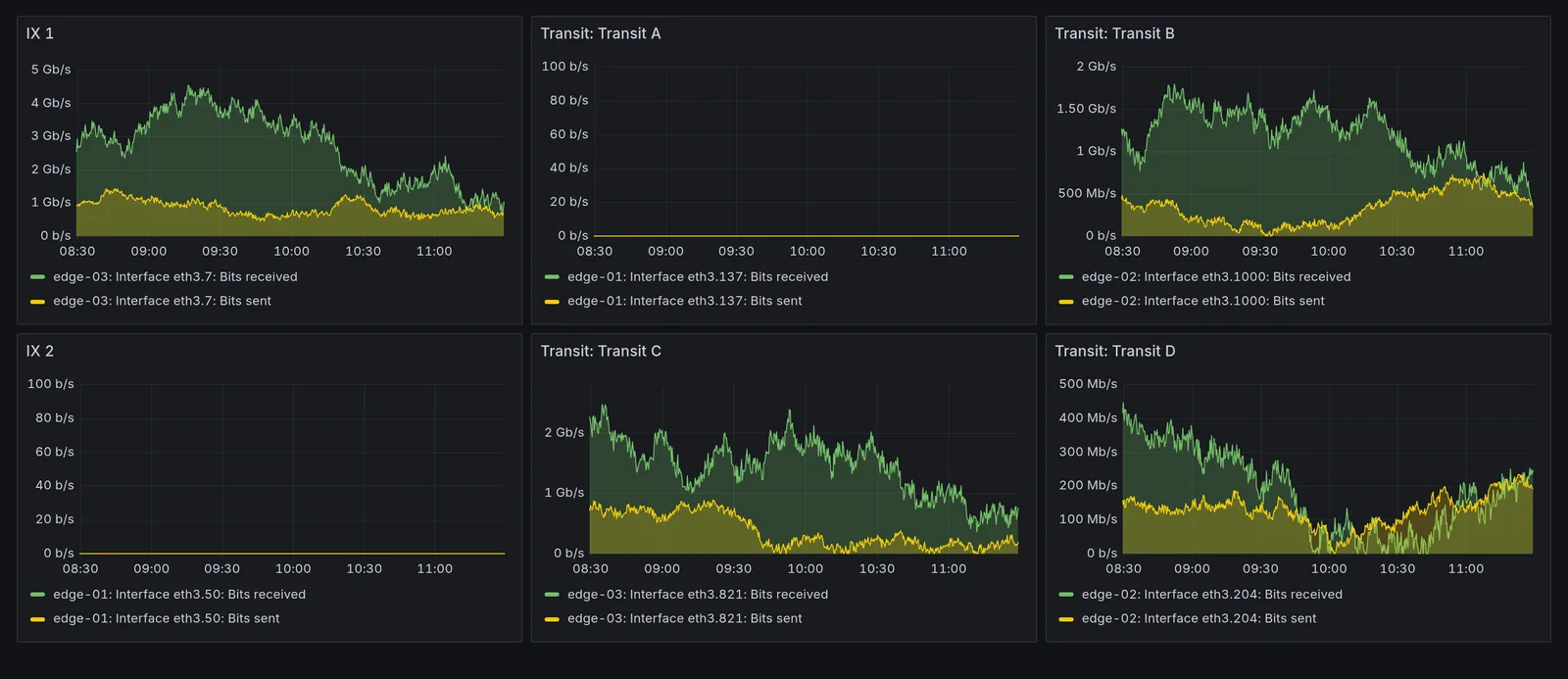
It looks complete, but try answering “which link is closest to full?” Every graph auto-scales, so a link at 800 Mb/s fills its panel just as much as one at 4 Gb/s. And the legends are interface names: “edge-01: Interface eth3.137: Bits received” tells you nothing until you remember which VLAN belongs to which provider.
Worst of all are the two flat lines. Is that link idle, is the BGP session down, or did Zabbix stop collecting data an hour ago? On this dashboard, all three look exactly the same.
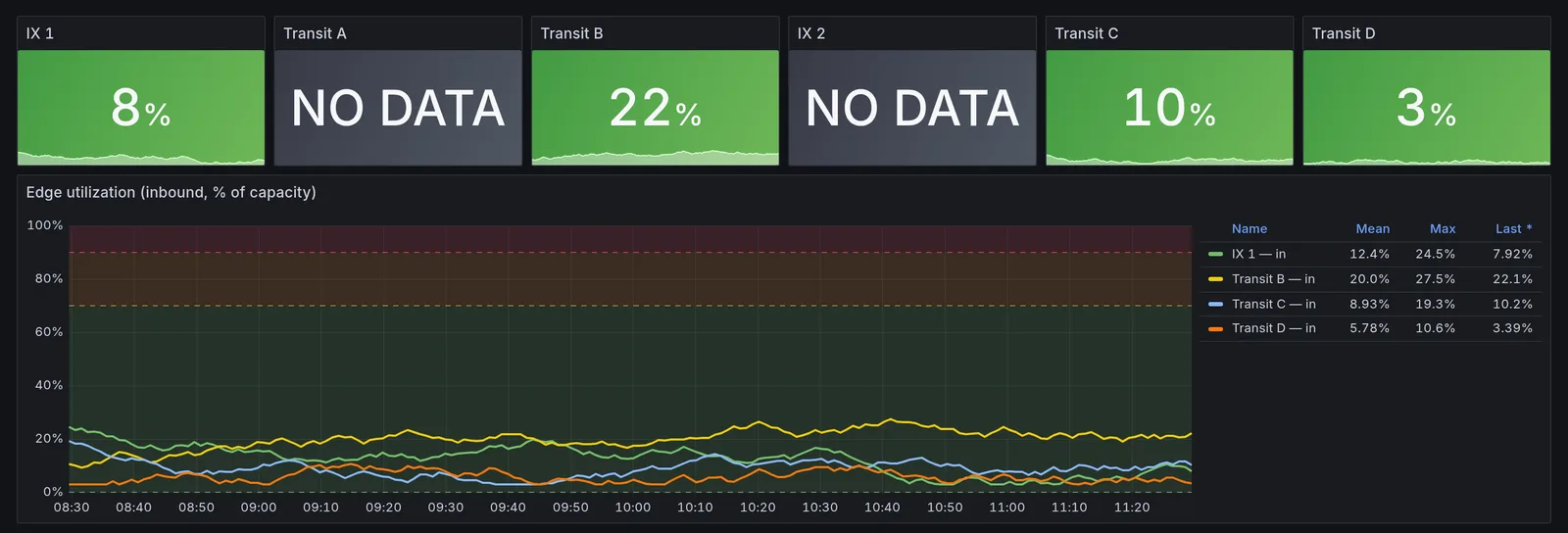
What changed:
- Percent of capacity instead of bits per second. Now every link has the same scale, and 70% means the same on a 10G as on a 100G link. More on how to calculate this below.
- Names instead of interfaces. The tiles and legend say “Transit A”, not “eth3.137”.
- NO DATA is a state of its own. In Grafana, set No value to
NO DATAand give the lowest threshold step a neutral grey, with green starting at 0. A real zero is green; missing data is grey and can’t be mistaken for an idle link.
Utilization as a calculated item
You can do the division in Grafana with a transformation, but I prefer a calculated item in Zabbix: then you can trigger on it as well. In the standard Network interfaces by SNMP template, the traffic items are already in bits per second and the speed item is in bits per second too, so an item prototype like this gives you a percentage:
last(//net.if.in[ifHCInOctets.{#SNMPINDEX}]) / last(//net.if.speed[ifHighSpeed.{#SNMPINDEX}]) * 100Two caveats. VLAN sub-interfaces often don’t report a speed at all, and for transit the physical port speed is rarely what matters: your commit or contract is. In that case, use a user macro with context, such as {$IF.CAPACITY:"eth3.137"}, instead of the speed item.
Names that come for free
Instead of renaming every series in Grafana, put the name where it belongs: in the interface description on the router. VyOS exposes the description as ifAlias over SNMP, and the standard Zabbix template uses it in the item name. If renaming is still needed, the plugin’s setAlias() and replaceAlias() functions do it per query.
Telling “idle” from “broken”
To make the difference between idle and broken visible in Zabbix as well, add two things next to the traffic items:
- the interface operational status (
net.if.status[ifOperStatus.{#SNMPINDEX}]), so “link down” is explicit - a
nodata()trigger prototype on the traffic item, such asnodata(/Network interfaces by SNMP/net.if.in[ifHCInOctets.{#SNMPINDEX}],10m)=1, so “stopped collecting” becomes a problem instead of a flat line
2. BGP state as a line graph
BGP session state is a number in SNMP (BGP4-MIB bgpPeerState: 1 = idle up to 6 = established), so the easy option is to graph it.
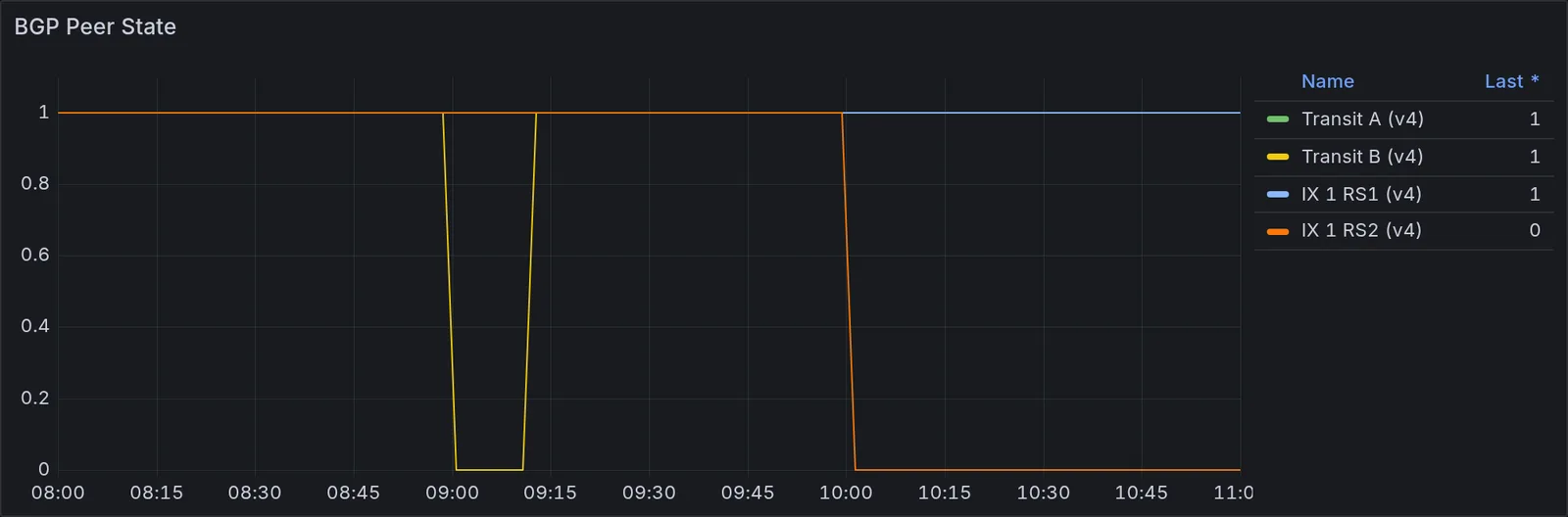
Lines overlap, the y-axis is meaningless (what is 0.6?), and the legend shows the last value, which hides a session that flapped and came back.
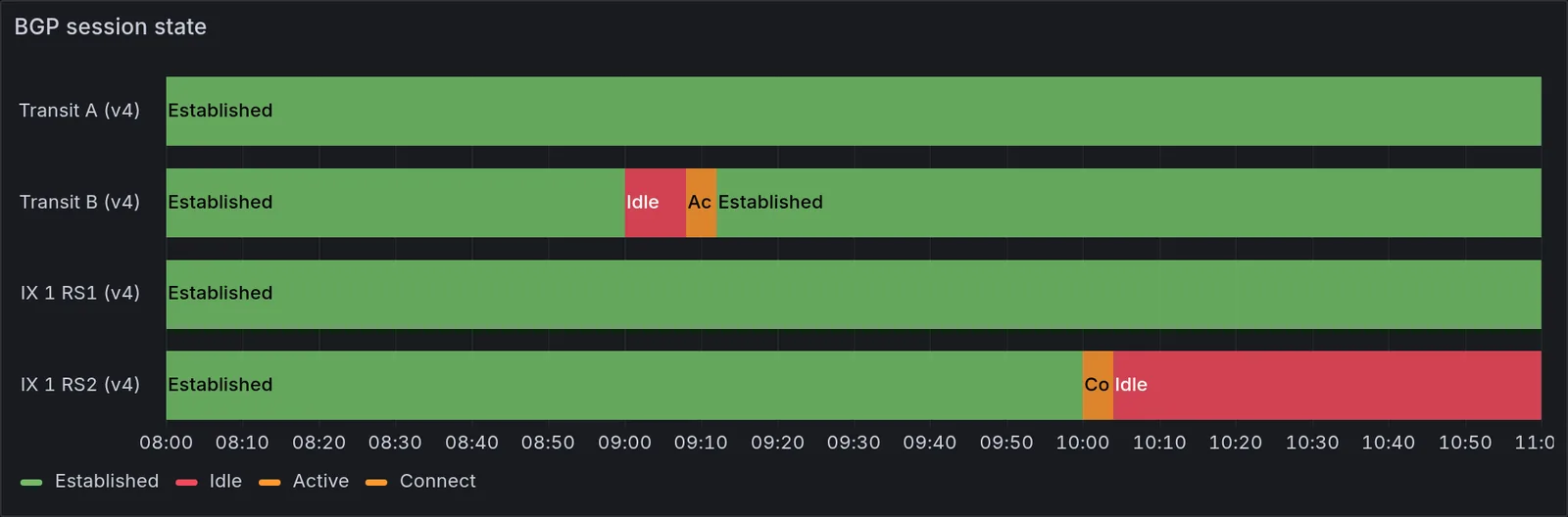
Use the state timeline panel with value mappings: 6 → Established (green), 1 → Idle (red), 2/3 → Connect/Active (orange). Every session gets its own row, and both the current state and the history are visible at a glance. The plugin can also apply Zabbix value mappings directly, but you still want the Grafana mapping for the colors.
3. Rows of gauges with truncated labels
Gauges are the default “make it look like a dashboard” panel. Twelve of them in a grid is a common sight.
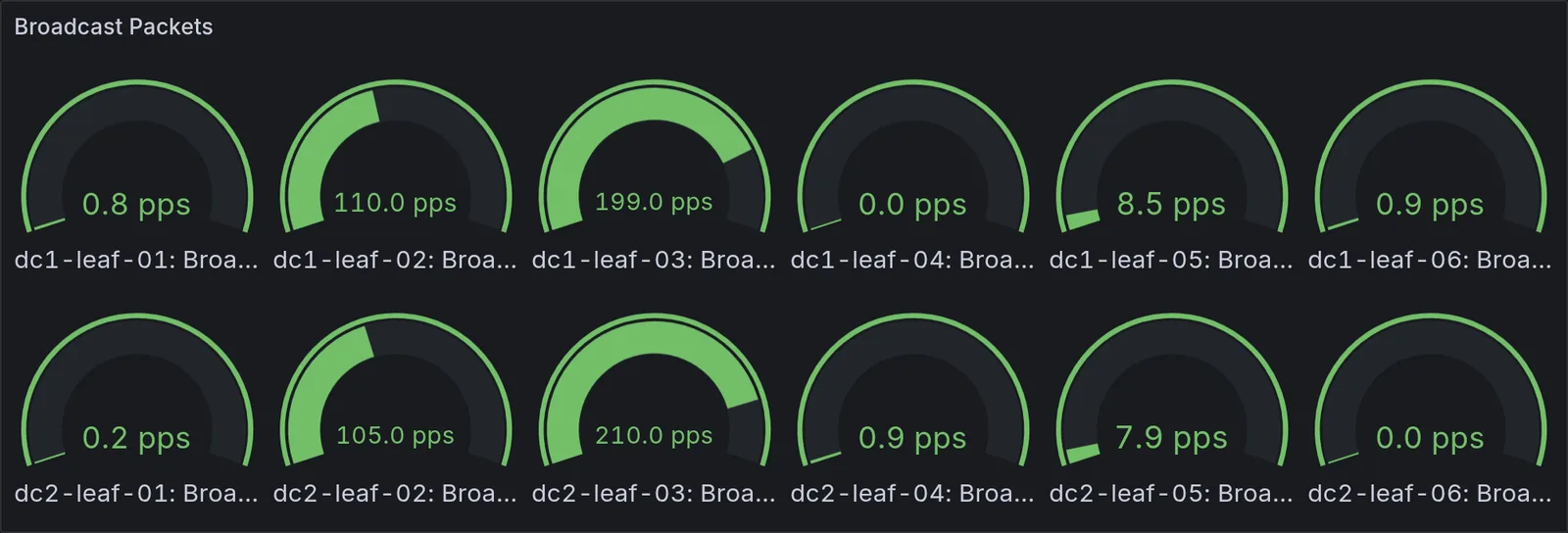
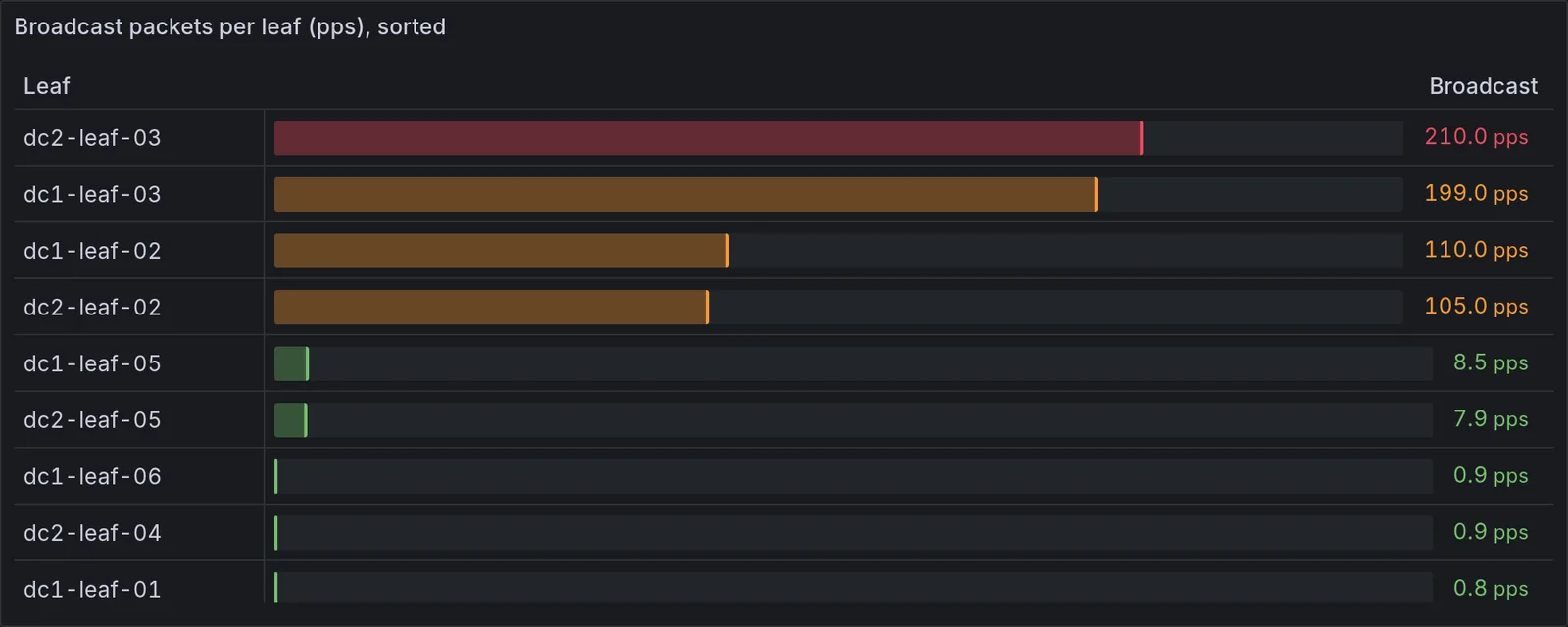
A table with a bar gauge cell, sorted descending, answers “which one?” immediately. It also scales: forty leafs is a slightly longer table, not three more rows of circles.
4. A pie chart with one slice
On one of my dashboards was a pie chart with the prefixes received per peering. One slice filled the entire circle; the other was too small to see. A pie chart only works for a handful of parts of a whole that are roughly the same size. That is almost never the case for network data.
For counts like received prefixes per neighbor, a stat panel per neighbor (or the same sorted table as above) works better. Add a threshold for a sudden drop, because “IX route server sends 30% fewer prefixes than an hour ago” is the information you actually want.
5. Everything red, all the time
A Top hosts by CPU widget with every row at 99% in bright red. If those hosts are batch workers that are supposed to run at full load, the red means nothing, and worse: it teaches everyone that red on this dashboard can be ignored.
Colors should mean something. Set thresholds per panel based on what’s abnormal for that data, not on a generic 80/90%. If a value is red every day, either the threshold is wrong or the panel belongs on a capacity dashboard, not the overview.
Putting it together: the overview
With the fixes above, the layer 1 overview becomes small and boring, which is exactly the point:
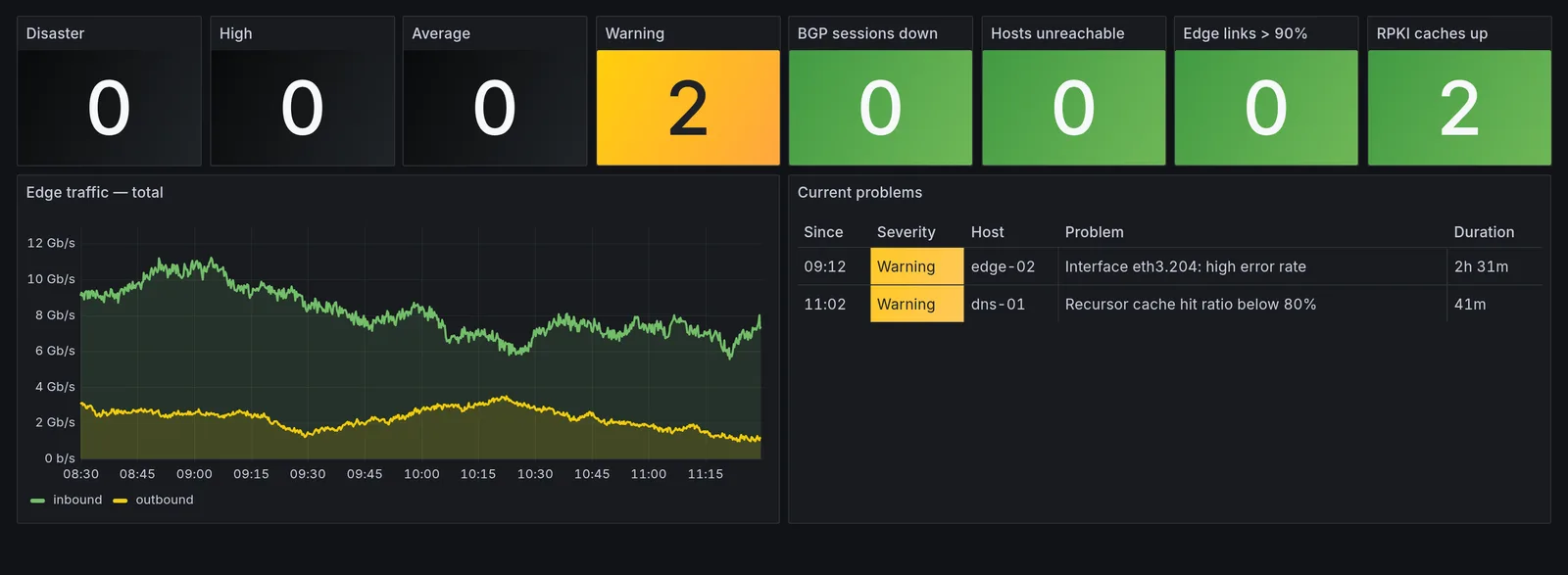
- Problem counts per severity, dark when zero and colored when not. Zabbix’s own Problems by severity widget does the same if you build the overview in Zabbix.
- A few health counters: BGP sessions down, hosts unreachable, edge links above 90%, RPKI caches connected. Each one maps to a Zabbix trigger, so the dashboard and the alerts never disagree.
- Total edge traffic, in and out. Not per interface: a sudden dip in the total is the fastest signal that something is wrong at the edge.
- The current problems, as a table.
Everything else moves to layer 2, the site and service dashboards with $group and $host variables, which link through to Zabbix for the details.
A few practical tips
- Spiky graphs over long ranges: one-minute data over three hours turns into a solid block of noise. Use
groupBy('5m', 'max')in the plugin to show the peaks per five minutes; for longer ranges, enable trends in the data source. - Refresh rate: most Zabbix items are collected every minute; refreshing a dashboard every five seconds only adds load.
- Dashboards as code: export the JSON model and keep it in git, and load it with Grafana’s file provisioning. A broken dashboard is then one
git revertaway.
Checklist
Before adding a panel, I now ask:
- Which question does this panel answer?
- Would someone notice if it were gone?
- Can missing data be mistaken for a normal value?
- Does red mean something here?
If a panel fails one of these, it doesn’t go on the dashboard.